
QCReporting
Please Note: The following information May Be out-of-date as the qcreporting.com domain is dead!
QC Reporting is a web based reporting tool that extracts data to produce reports from the database used by the test tool HP Quality Center and its predecessor HP Test Director. The resulting reporting media format can be, where possible:
- Microsoft Excel
- Screen table
- Adobe Flash Graph
- Microsoft Word
- HTML
This product was formerly known as TD Reports which was based on the predecessor to Quality Center known as Test director during the former Mercury Interactive days.
QCReporting benefits testing resources who spending time writing and maintaining test reports by enabling them to produce reports quickly and accurately. QCreporting is usually installed as part of a company's intranet. This means that reports can be created and presented easily during meetings using the company Wifi whilst containing up-to-date data.
Need for some QC reporting tool
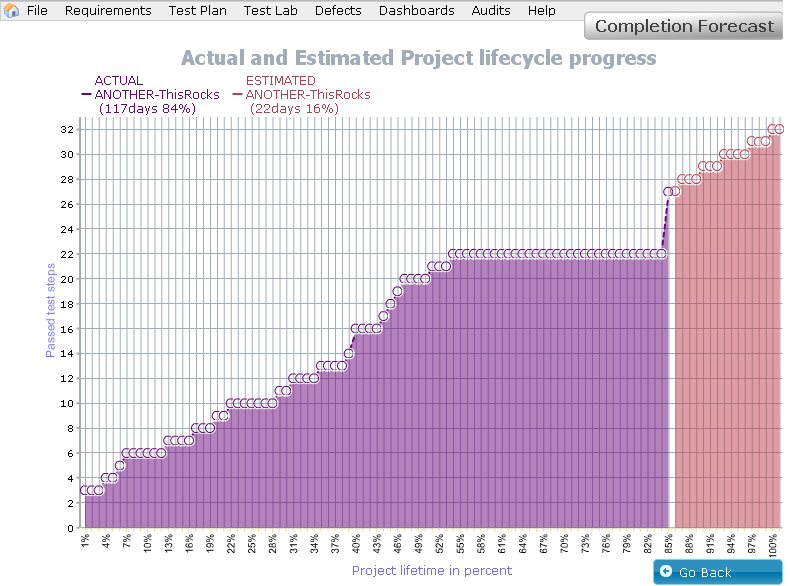 The testing product that is used with QCReporting is Quality Center. Quality Center comes with some reports. These reports can be built and set by the user but they often lead to very long HTML output. Over the years testers, usually the Test Manager of a test team would spend time creating and formatting reports for senior management. This process has been known to take a full working day to compile, usually involving multiple Excel report extracts. This in turn led to the writing of custom reports. These were often developed using one of two ways.
- By connecting to Quality Center using 'VBScript' report script which extracts the data and CREATES a formatted report. The format of the report is set in the code.
- By scripting with VBScript inside Quality Center in it’s workflow area. Quality Center allows adding custom buttons to its dashboard, which can then be used to trigger the custom report script.
The former option became the most popular with extracts also being written to Microsoft Excel which could then be used to create graphs.
The need for up-to-date information spurred on ever more ways to extract data from Quality Center and format a report.
Example of a VB Script used to extract a QC report
The following VBScript can be executed by typing wscript scriptname.vbs at the command prompt.
The tool helps make the need for scripts such as these a thing of the past. The following script is an example of what a test manager would have had to use to extract data from Quality Center.
Option Explicit
Dim QCConnection
'--------
Dim Excel, Sheet, CurrRow
Dim UserN, QCUserN, UserP, QCDomain, QCProj, QCAddr, XLSSavePos
Dim REQUsersTreeStr, WSHNetwork
'--------
QCUserN  = "QC_User_Name"
UserP    = "QC_User_Password"
QCDomain = "QC_Domain_Name"
QCProj   = "QC_Project_Name"
QCAddr   = "http://SomeServer:8080/qcbin"
'--------
WScript.Echo "Initialising...."
Set Excel = CreateObject("Excel.Application") 'Open Excel
Excel.ScreenUpdating = False
Set WSHNetwork  = WScript.CreateObject("WScript.Network")
UserN = WshNetwork.UserName
Set WSHNetwork = Nothing
Set QCConnection = CreateObject("TDApiOle80.TDConnection")
QCConnection.InitConnectionEx QCAddr
QCConnection.login QCUserN, UserP
QCConnection.Connect QCDomain, QCProj
If (QCConnection.Connected <> True) Then
    WScript.Echo "QC Project Failed to Connect"
    WScript.Quit
End If
'--------
On Error Resume Next
WScript.Echo "Extract from QC here and format it out"
'--------
If Err.number <> 0 Then WScript.Echo Err.Description & ":" & Err.Number
'--------
'Note: This will attempt to save the XLS into UserN's DESKTOP. please check the folder location first
XLSSavePos = "C:\Documents and Settings\" & UserN & "\Desktop\" & QCProj & ".xls"
Excel.ScreenUpdating = True
WScript.Echo "Attempting to save to folder:'" & XLSSavePos & "'"
Excel.ActiveWorkbook.SaveAs(XLSSavePos)
Excel.Quit
Set Excel = Nothing
'--------
QCConnection.Disconnect
QCConnection.Logout
QCConnection.ReleaseConnection
WScript.Echo "Report Complete"
Marriage of QCReporting to Quality Center
There are a number of ways where a marriage relationship is apparent between the reporting tool and Quality Center.
- Users are not created in QCReporting, instead they are synchronised from Quality Center. The syncyhronisation includes their user settings and access rights to domains and projects.
- Data managed and altered in Quality Center is reported on using a read-only user in QCReporting.
- Customisation, such as user fields, made in Quality Center are reported on through QCReporting.
QCReporting tool support
The tool offers user support and functionality to manage itself.
- User Support
User support is primarily managed through a web based ticket system off the clients own installed instance of the tool.
- Tickets can be user or group owned
- Tickets can be escalated
- Simple requests such as wanting a new report can be raised as a ticket
- Fixes to tickets appear through the automatic update system
- Tool maintenance
- An auto update facility downloads and installs the latest updates from the support site. The update is encrypted over https.
- The tool verifies each transmission with its unique client license information
QCReporting was born
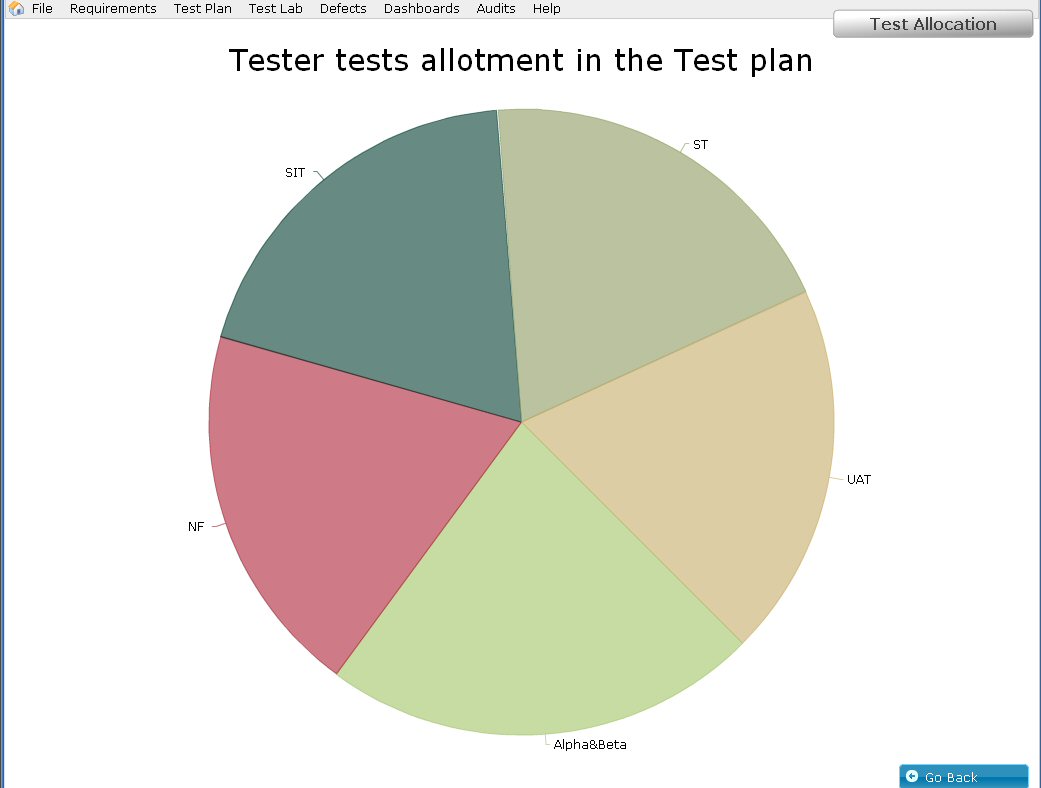 Quality Center is a testing tool that is very common in the testing world. The test tool is divided into four main categories. The QCReporting follows those categories. They are:
- Requirements & coverage assurance report. These can be business, design, functional and non-functional requirements.
- Test plan
- Test Lab
- Defects
- Dashboards. These are overview cross-project and cross-domain reports. Most popular with upper management.
- Test Exit reports - at the end of every phase and cycle issue the report to summarise the finding, the coverage and the outcome.
- The additional category is Audit reports which follow the Sarbanes–Oxley legislation.
The tool delivers fantastic time saving and greater levels of accuracy: producing the Test Exit report, which includes all the customised fields of QC is just one button click away; or a few if you would like to exclude certain parts of the default settings.
The tool provides comprehensive overview of the test coverage reports showing horizontal and vertical traceability between all of the project requirements and test scripts whilst highlighting where there may be gaps, such as missing requirements or orphaned test scripts.
"How are we doing?" Many Project and Test Managers have heard this never-aging question. How do you explain it in not so many words, as there is little patience, time or desire to listen to a lengthy and wordy explanation. With QCReporting the answer is just one click away - a comprehensive and yet easy-to-understand dashboard spread across several projects and even domains can appear within mere seconds. It tells you where you are with each project and across the function or the domain and provides some vital indicators of the project "health" and its testing phase status and maturity levels.
The tool plays a vital role in the Impact Assessment procedure, providing conscious and unambiguous views of the real impact of the change or of the delay to the defect fix. There is no longer a need to guess - one click away is the information on which requirements were affected and to which extent, which scripts need to be re-writted and which ones will have to be amended; what the regression implication is and, if related to the already tested piece of work, how long did it take to execute in the past.
There are several additional features which will be available shortly.
What's even better is that one of the tool's add-ins such as the Auto-Updater is used for its self-maintenance and to provide instant user support.